
Adding an Asset
The following process adds a new asset to the list of those to be audited.
From the Defined Assets display, click Add New Asset.

The Create New Asset display opens at the Definitions page. This is where you set the general information relating to the new asset.
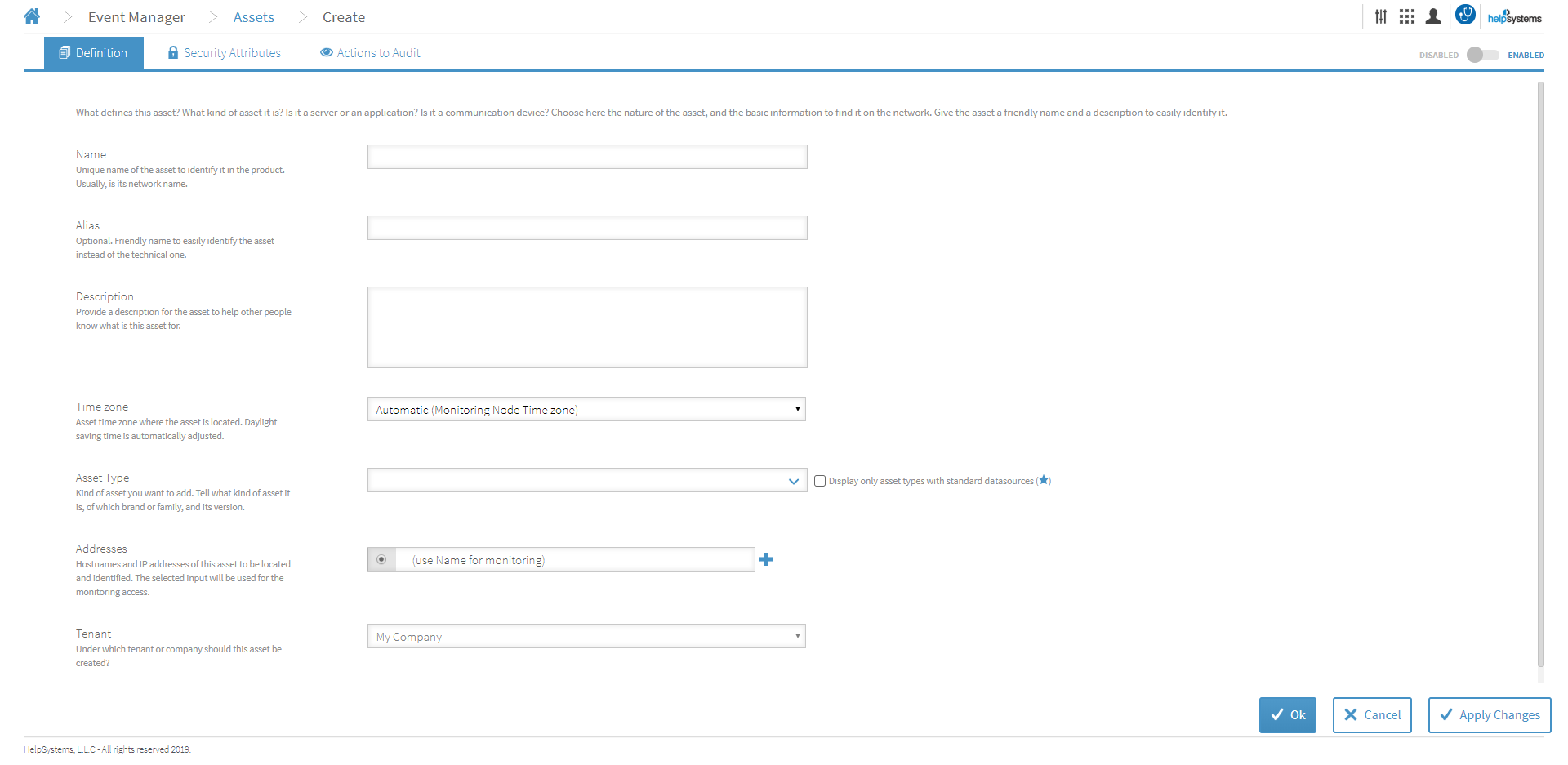
Definitions tab
When creating an asset, the Definitions tab is where you enter information about how the asset is named, identified and recorded in your network enterprise.
- Name: Enter the unique name of the asset to make it identifiable within Event Manager. In most cases, the network name would be used.
- Alias: The entry in this field is optional. Enter an alternative name (other than the technical one) by which this asset can be identified.
- Description: Enter a description of the asset so that it’s purpose is clear to anyone using Event Manager.
- Time zone: Use the drop-down menu to select the time zone in which the asset is located. If the asset is in the same zone as the monitoring node leave the default setting of Automatic (Monitoring Node Time zone). Daylight saving time is automatically adjusted. When viewing the asset in Event Manager or Forensic Analysis, the time zone in which the asset is located can be selected as one of the column displays.
- Asset Type: From the drop-down choice menu, select the asset type. Further drop-downs, where applicable dependent on the asset type selected, allow you to select the brand or family and version number.
- Host: If an application, or software is selected as the asset type, select the host server on which it is running.
- Tenant: A Tenant is a container used to organize all the data of a given company. You can configure multiple Tenants.
Security Attributes tab
Once the details of the asset have been entered into the Definitions tab, click the Security Attributes tab to specify the criticality level and the security regulations with which this asset must comply.
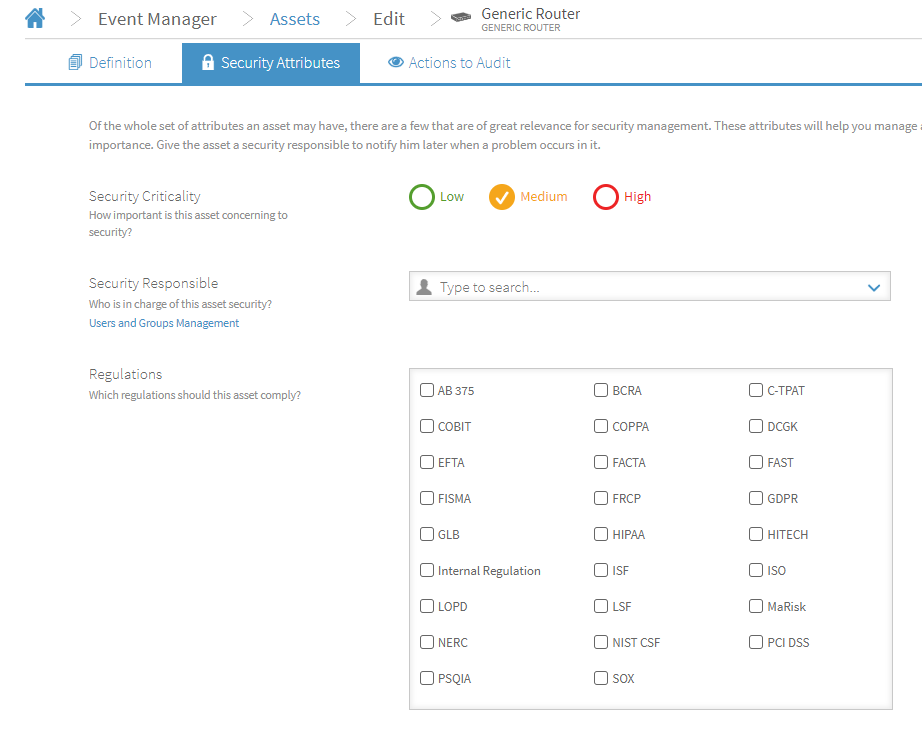
Security criticality: Select the level of criticality that needs to be applied to the security element of this asset.
- Low: This asset is of no or little importance where security is concerned
- Medium: This asset has a security level that would be of medium concern to the business if it was compromised
- High: This asset is of critical importance to the business and must be kept as secure as possible so that no access or data breaches occur.
Security Responsible: Use the drop-down menu to select an individual user or group which is responsible for the security of the asset. It is possible to specify No Responsible to indicate that no single person or group has security responsibility for this asset. Click Users and Groups Management to enter the details of a user or group that is not currently defined in the drop-down list.
Regulations: Use the check boxes to apply the required compliance regulations with which this asset must comply.
- BCRA - Banco Central de la Republica Argentina
- C-TPAT - Customs Trade Partnership Against Terrorism
- COBIT - Control Objectives for Information and Related Technology
- COPPA - Childrens Online Privacy Protection Act
- DCGK - Deutsche (German) Corporate Governance Kodex
- EFTA - Electronic Fund Transfer Act
- FACTA - Fair and Accurate Credit Transactions Act
- FAST - Free And Secure Trade Program
- FISMA - Federal Information Security Management Act
- FRCP - Federal Rules of Civil Procedure
- GDPR - EU General Data Protection Regulation
- GLB - Gramm-Leach-Bliley Act
- HIPAA - Healthcare Insurance Portability and Accountability Act
- HITECH - Health Information Technology for Economic and Clinical Health
- ISO - Security Regulation
- LOPD - Ley Orgánica de Protección de Datos
- LSF - Loi de Sécurité Financière
- MaRisk - Security Regulation
- NERC - North American Electric Reliability Corporation
- PCI DSS - Payment Card industry Data Security Standard
- PSQIA - Patient Safety and Quality Improvement Act
- SOX - Sarbanes Oxley
- Internal Regulation - Bespoke Internal Compliance Requirement
Environment: Use the drop-down menu to select the environment in which this asset is running,
- Development
- Pre-Production
- Production
- SIT (System Integration Testing)
- Test/QA (Test/Quality Assurance)
- UAT (User Acceptance Testing)
Customer: If applicable, enter the name of any external customer for which this asset is used to provide a service.
Facility Name: Enter the name of the facility where the asset is physically located. This works in conjunction with the Facility Type field.
Facility Type: From the drop-down menu, select the type of facility in which the asset is located.
- Branch
- Building
- Call Center
- Cloud
- Data Center
- Factory
- Shop
- Warehouse
Once the Definition and Security Attributes have been set for the asset, click Apply Changes followed by OK to confirm and save the changes. The new asset has now been created and is available for selection in the asset list.