License Management
The License Management settings allow the viewing of existing license application and provides fields for the entry and update of an existing code. Additionally, there is a facility to directly request codes from HelpSystems.
- Open a session of Event Manager and click the
 Configuration icon .
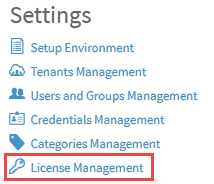
 - From within the Settings section, click License Management.
License Details
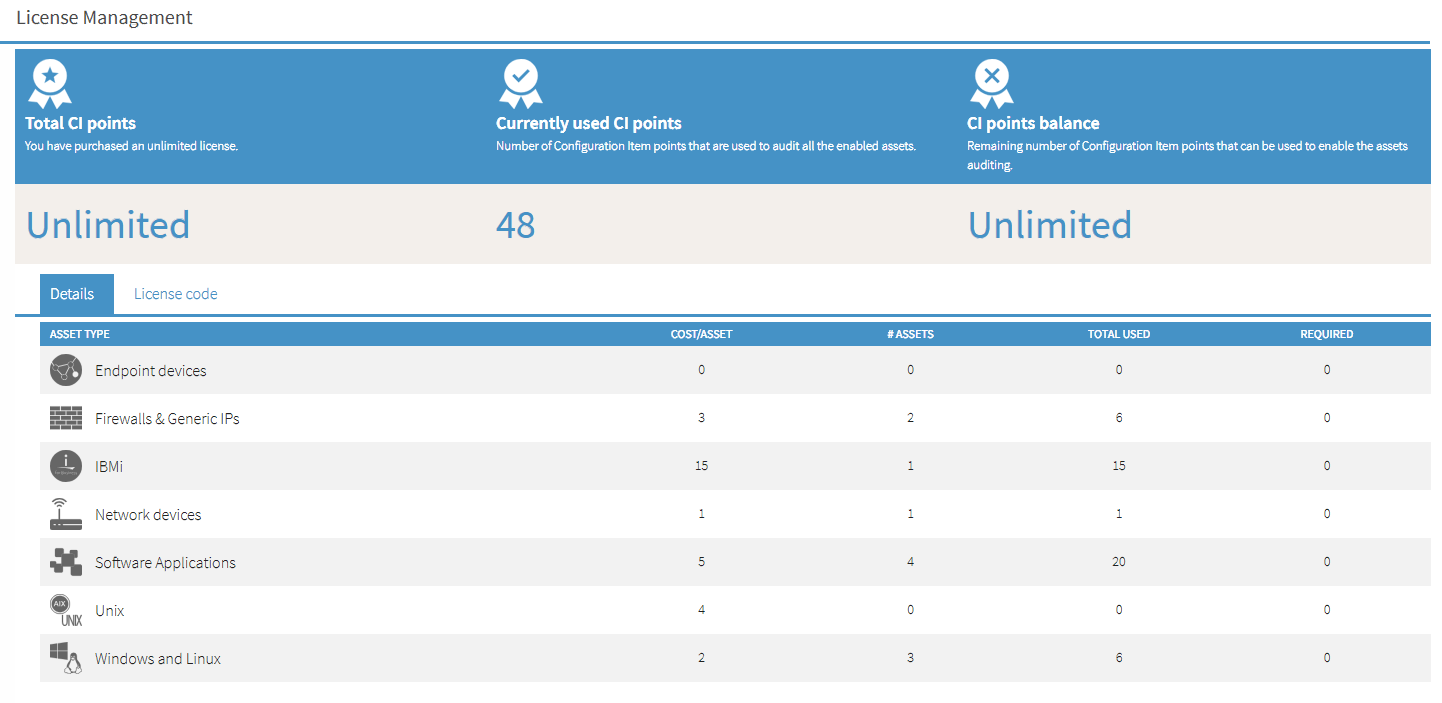
License Management is displayed with the Details page open. This shows summary and detailed breakdown information of any license key that is already applied to this installation. The license uses Configuration Item points which are assigned to assets that need to be audited. Some assets require more Configuration Item points than others.
Total CI Points
This displays the total number of Configuration Item points you have purchased with your license. Displays Unlimited if you have purchased an unlimited license.
Currently used CI points
Displays the total number of Configuration Items points used so far in auditing the enabled assets.
CI points balance
Displays the remaining balance of CI points available to audit assets that are not currently monitored. Displays Unlimited if you have purchased an unlimited license.
Asset Type
Displays the type of asset being monitored.
Cost Asset
Displays the individual cost of auditing an asset of this type.
#Assets
Displays the number of assets currently being monitored.
Total Used
Displays the total cost of auditing the asset.
Required
Displays the additional assets that are not currently being audited.
License Code
Click the License Code tab to display the details of the existing license applied to this installation.
Entering a License Key
To apply a new license key:
- On the License Management page, click the License code tab.
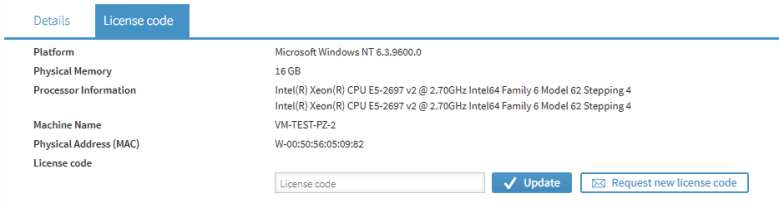
- Type, or Copy and Paste the license key from the HelpSystems email, into the License code field and click Update.
The License code is updated and the summary and breakdown information of the license is now available from the Details tab.
Requesting a License Key
To request a new license key:
- On the License Management page, click the License code tab.
- Click Request new license code.
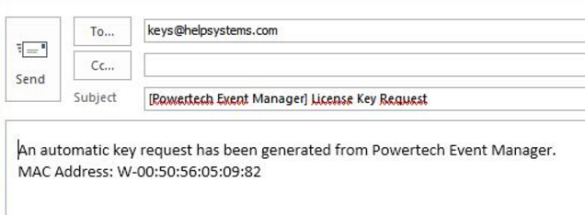
An email is automatically opened, providing you have an associated email account, ready to send a request to keys@helpsystems, for a license code specific to the machine from which the request was generated.