Halcyon
Be sure you tell your customers to get familiar with our support portal.
 Must Gather For Support Cases
- Detailed description of the issue
- Determining case’s urgency
Collecting troubleshooting data early can help support quickly determine if:
- Symptoms match known problems
- There is a non-defect problem that can be identified and resolved
- There is a defect that identifies a workaround to reduce severity
- Locating root cause can speed a development code fix
- Problem description
Some questions to help the technician to gather information about the problem that the customer is having:
- Is this a new problem? If not, maybe the customer has an older ticket related to the actual problem which could be useful
- Was it working before and now stopped?
- Has it ever worked?
- Have you made changes recently? (e.g: Applied software patches/fixes, Applied Windows patches/fixes, changed Windows policies, changed network configurations, changed/added/removed firewall rules, etc.)
- Is the problem re-creatable? Provide the steps to reproduce it in that case
- Screenshots showing the error message
“A picture is worth a thousand words”, go ahead and request a picture from the customer
-
Recording of error duplication
If “A picture is worth a thousand words”, we can also say “A video is worth a thousand images”. Encourage our customers to record videos. It’s easier for all of us.
- Gather Version numbers
- Product version for IBM i products
- Use the command DSPPRDINF from within Halcyon and send a screen shot of the version information
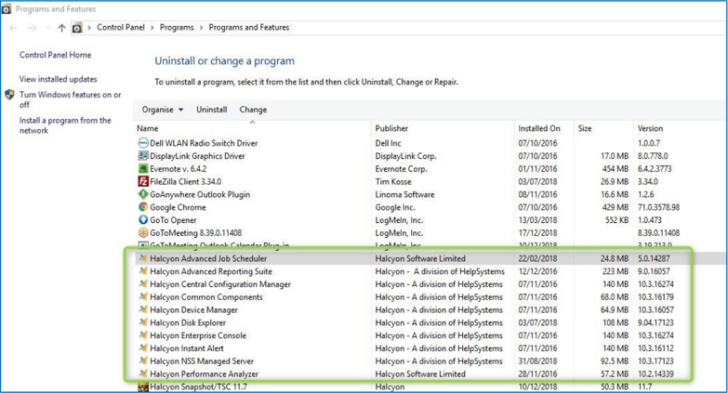
- Product version for Network Server Suite or Enterprise Console
- Open Programs and Features by:
Navigating to: Control Panel > Programs > Programs and Features or press the Windows key and type appwiz.cplEnter
- Send a screenshot of your Halcyon products:
- Product version for IBM i products

For Remote agents
If this is affecting several remote agents, we need:
- The hostname of the remote agent server
- The OS version of the remote agent server
- The installed Halcyon version of the remote agent. This can be retrieved from CCM Console by clicking on File then Upgrade systems
Then click Get Versions at the bottom of the window to refresh the list
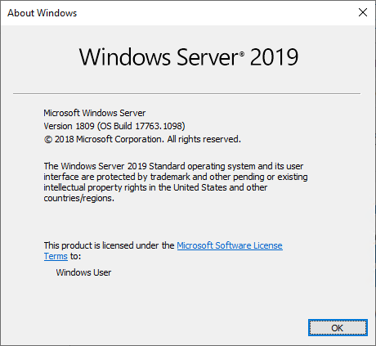
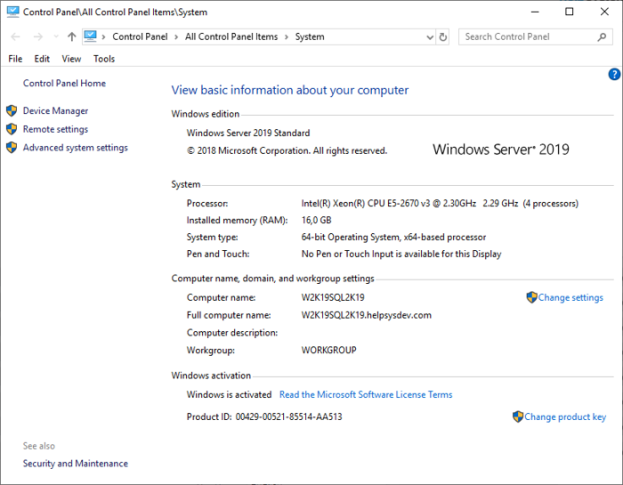
- Operating System and release
- Run the command “winver” from a cmd, windows search or Win+R keyboard shortcut. The resulting window should be something like this:
- Alternatively, from the Control Panel > System:
- Depending on the issue please gather:
- Product logs for IBM i products
- If a job has failed, then send in the full joblog from the failed job. Please do not send in program dumps unless specifically requested
- Halcyon Message log extract. The Halcyon Message log is the “flight data recorder” for the product, you should send an extract of the logfile using the PRTMSGLOG command. The FROMDATE and TODATE parameters can limit the amount of data produced
- If the problem is with phone, pager or email communications. The Communications log is the record if each communication attempted. You should send an extract of this log file using the HMCPROD/PRTCMNLOG command. The FROMDATE and TODATE parameters can limit the amount of data produced. Where specific entries are in ERROR state, you should send the detail of that entry by using option 6 (Print) of the DSPCMNLOG display. To access the communications log; GO HALCYON > 21 > 2 Or GO HALCYON > DSPCMNLO
- Product logs for other products
- Windows Agents: Windows agent logs are stored at: C:\Program Files (x86)\Halcyon\Server Manager\Logs (or if running Version 11: C:\ProgramData\Halcyon\Server Manager\Logs). The entire directory should be zipped and sent to Support
- AIX/VIOS/Linux agents: Unix agents logfiles are stored at: /tmp/ServerManager.hlf. The file is cycled when it reaches 10Mb, the name is changed to ServerManager.hlf.bak. You should send all relevant files for the time period, to Support. If the logfiles have not been updated recently, then you will need to turn logging on from CCM console for the affected device and ensure the log file has enough time to capture any relevant information. To turn logging for agents on/off:
- Open CCM Console
- Click on Systems
- Click on the system you wish to apply logging to
- Under Message Log Settings, check all three boxes
- Click Save Settings and ensure that the save completes correctly
- Recreate or wait for the problem to re-occur
- Enterprise Console Server and client logfiles: These are stored at:
- C:\Program Files (x86)\Halcyon\Enterprise Console\logs
- C:\Program Files (x86)\Halcyon\Network Manager\logs
- Version 11 logfiles are stored in:
- C:\ProgramData\Halcyon\Enterprise Console\Logs
- C:\ProgramData\Halcyon\Network Manager\Logs
- C:\ProgramData\Halcyon\Enterprise Server\Logs
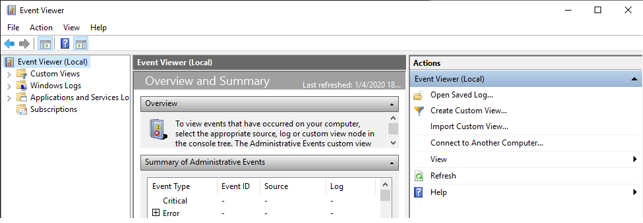
- Operating system logs (Application and System eventlogs): In some cases, this information is good to help with the diagnosis of the case. Sometimes can be useful to track events and the occurrence time to correlate with our logs.
- Run the command eventvwr from a cmd, windows search or Win+R keyboard shortcut. The resulting window should be something like this:
- Go to “Windows Logs” folder and expand it:
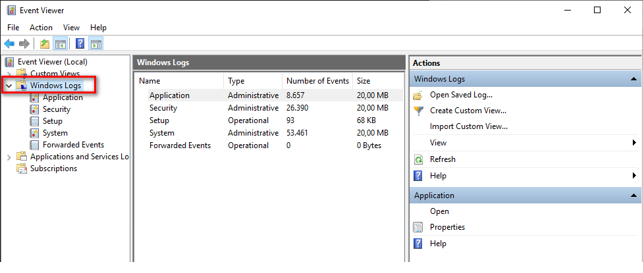
- Right click on Application/System eventlog and click on “Save All Events As…”
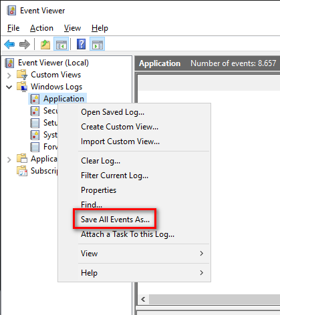
- Select a path to save the eventlog and choose a name for the resulting .evtx file
- Select the default option “No display information” and click OK to finish the process:
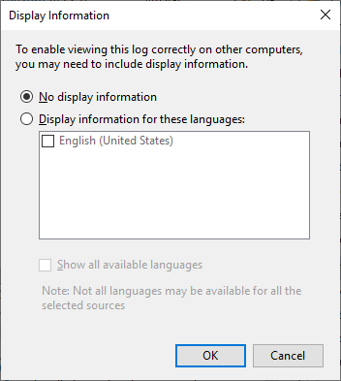
- Product logs for IBM i products
How Are License Issues Handled?
Licenses enable the product to be used. All Halcyon applications are secured against the installed system by a machine reference or the system information (IBM i)
Halcyon temporary codes are sent weekly by Stephen Mabbutt.
The temp keys are broken down by product, with IBM i keys listed within one PDF, other keys are listed in the other PDF document.
If you need to request a key, send an e-mail to: keys@helpsystems.com
If the customer is planning to change the machine in which the software is running, send the link to license change form below or send email to: keys@helpsystems.com
Form: https://www.helpsystems.com/landing/hardware-change-form-non-ibmi-products*