
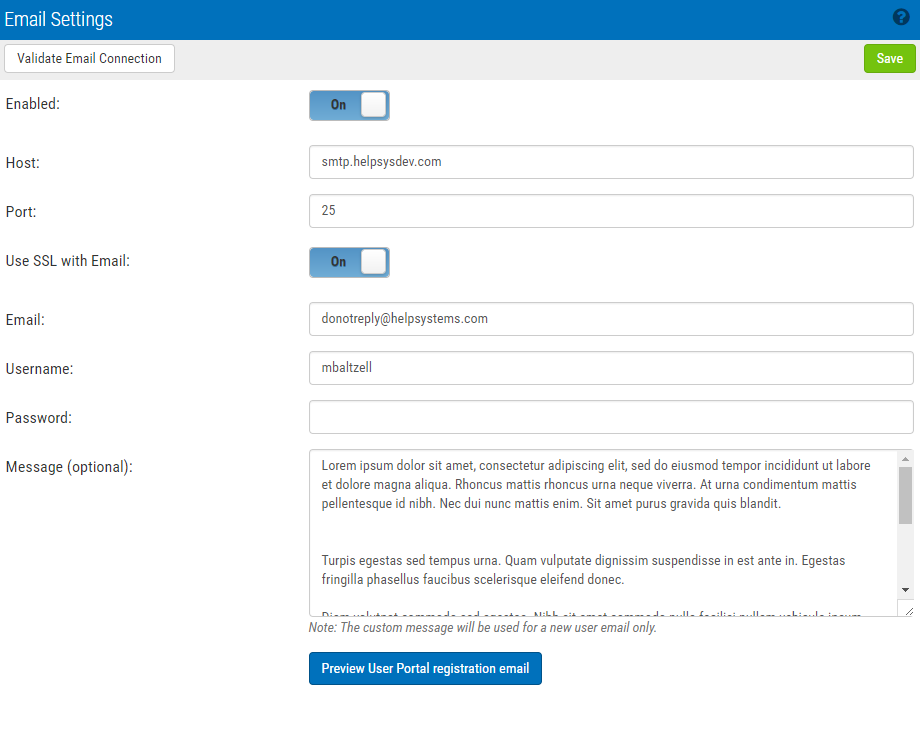
Email Settings screen
How to Get There
In the Navigation Pane, choose Email.
What it Does
Once users have been added to the Authentication Manager database, they can be sent an email to advise them of this fact. The email includes a link to the self-service portal where they can complete the registration process and maintain their account details. Use this screen to configure your email server settings and define the content of the message.
Options
Enabled
Choose this option to enable email.
Host
This is the host name of your email server.
Port
This is the port used by your email server.
Use SSL with email
Choose this option to secure email correspondence with SSL.
This is the email address that will appear in the "From" field of the recipient's message.
Username
Enter the username required by mail server (if credentials are required by the mail server).
Password
Enter the password required by the mail server (if credentials are required by the mail server).
Message (optional):
Enter a message to include for new users.
Preview User Portal registration email
Click this button to display a preview of the email that will be sent to users.