Secured Role Properties
The Secured Role Properties page lists all the user profiles available to be added to the role, any users currently enrolled, and all available secured objects with their subsequent privileges.
To open the Secured Role Properties page, clicktap  Show Actions on the Product Security Setup page next to the secured role you want to view, then select Edit or Copy. Alternatively, you can also open the page by adding a new secured role.
 Secured Role Details
You can review or change the following fields:
-
ClickTap Role to enter or change the security role name.
-
ClickTap Description to enter or change the description of the security role.
Role Users
To add a new role user for this secured role:
-
ClickTap
 Add.
Add.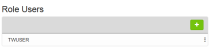
-
ClickTap the User Profile you want to add to the secured role. You may only select one at a time. The User Profiles will be automatically added to the Role Users list.
Note: You can also use the search bar to filter items for faster results.

Do the following to delete a role user from the secured role:
- ClickTap Show Actions next to a role user, then select Delete.
- ClickTap Save.
Secured Objects
You can use the secured objects section to specify which privileges new secured roles should have.
In Robot Network security, access rights apply to secured objects (such as node groups), operations (such as responding to statuses), or both. Some rights apply to objects only, whereas others apply to operations only. The remaining rights apply to both.
Robot Network uses the following object access rights to define its security roles:
Exclude: The security role is excluded from any access to the object.
Change: The security role is allowed to change the object.
View Only: The security role is allowed to view the object, but is not allowed to use it or change it.
Use: The security role can use the object, but is not allowed to change it.
