Generate Audit Report
How to get there
On the Deployment Manager page, click Actions next to Maintain Enterprise License, then click Audit Report.
What it does
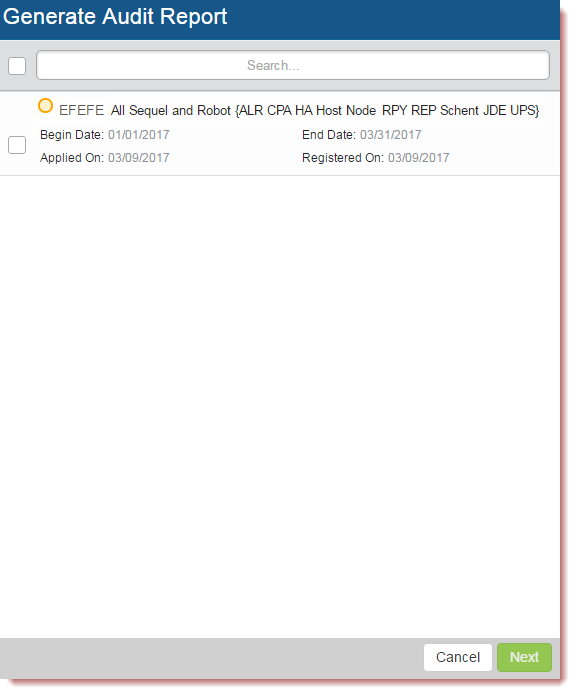
Use the Generate Audit Report screen to select which enterprise licenses you want to generate an audit report for. This screen allows you to select which enterprise licenses you want to generate an audit report for. At a glance, you can see when the licenses began, when they were applied, when they were registered (the date they were added to the ELA), and when they will end.
Actions
- Select the enterprise license you want to generate a report for, then click Next.
- Use the Search bar to quickly find an enterprise license by its description or 5-digit code (EFEFE, for example).
Statuses
The status circles display the status of the enterprise license.
 = The license has expired.
 = The license is about to expire.
 = The license is up-to-date.