Assigning Inbox Access
All users are automatically assigned access to their own inboxes. This inbox displays as My Inbox in the web interface.
However, you may also want to allow a user to access another inbox. For example:
- To allow managers access to their employees' inboxes.
- To allow two users who cover for each other to access to each other's inboxes.
- To allow access to a group inbox, such as all Accounts Payable staff to the inbox Invoices Awaiting Receiver.
To assign a user access to another inbox:
-
From the main menu, choose 15: Work with Routing Inbox Access.
Work with Routing Inbox Access displays. -
Press F6.
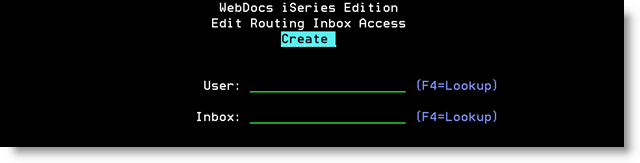
Edit Routing Inbox Access displays.
-
In User, type the user to give access to another inbox or press F4 and select a user.
-
In Inbox, type the inbox to give the user access to or press F4 and select an inbox.
-
Press Enter.
The message Record added displays, and the user can see the other inbox in the web interface.